Tutorial · Available since FireAI 0.1.0
Turn on threat lists, and investigate a flagged connection
Go from a red flag to a real answer in one page, without leaving FireAI.
Where in FireAI: Threats
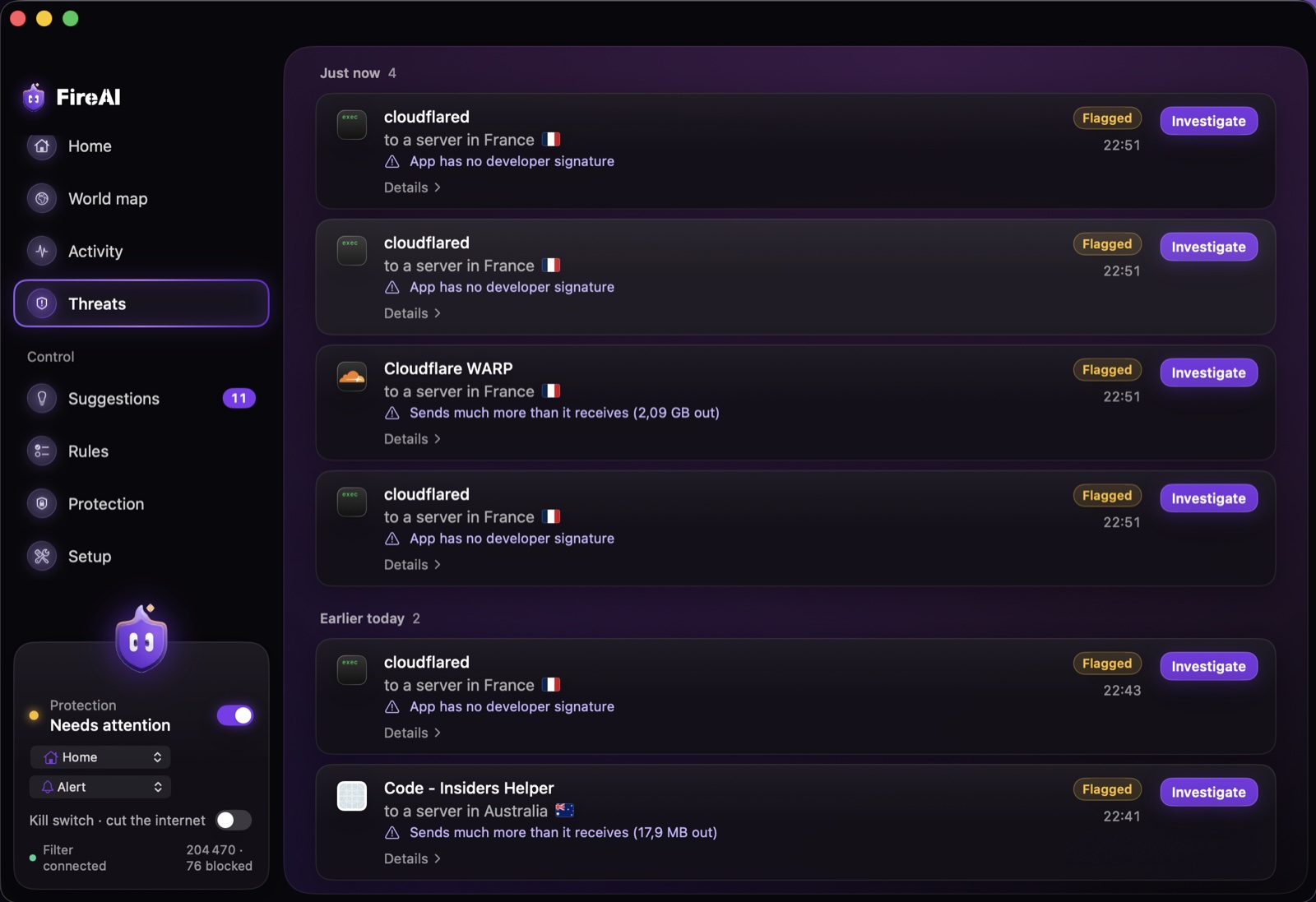
Turn the lists on
- Open Threats and find “Where the threat data comes from”.
- Turn on Use public threat data. FireAI downloads the public lists once a day; your traffic is never sent to them.
- Optionally turn on Block what a threat list confirms so a confirmed match is blocked outright, not just shown.
Read a flagged connection
- A finding on the Threats page shows the app, the destination, and a plain reason such as being listed by more than one feed.
- Click Investigate for the full dossier: a risk score out of 100 with the individual signs that raised or lowered it, what FireAI actually saw (first seen, last seen, apps involved), and — from the unencrypted parts of the connection only, never decrypted HTTPS — the server name, protocol and anything sent in the clear.
- Open Details for the network owner, whether the address is a known open proxy or Tor exit, and exactly which threat lists were checked and what each one said.
- If the on-device AI is ready, Summarise the evidence writes three plain sentences from those same facts. FireAI says plainly: it can be wrong — check the sources.
Decide
Every dossier ends with the same three choices: Block for every app, Block only for this app, or It’s fine. “Look it up yourself” links open your browser for outside sources; FireAI sends nothing to them.
Read next
Try it on your own Mac
Try every feature free for 17 days, no card needed.
30-day money-back guarantee.