Tutorial · Available since FireAI 0.1.2
Check for updates from the FireAI menu
Know in a second whether you are up to date.
Where in FireAI: FireAI › Check for Updates…
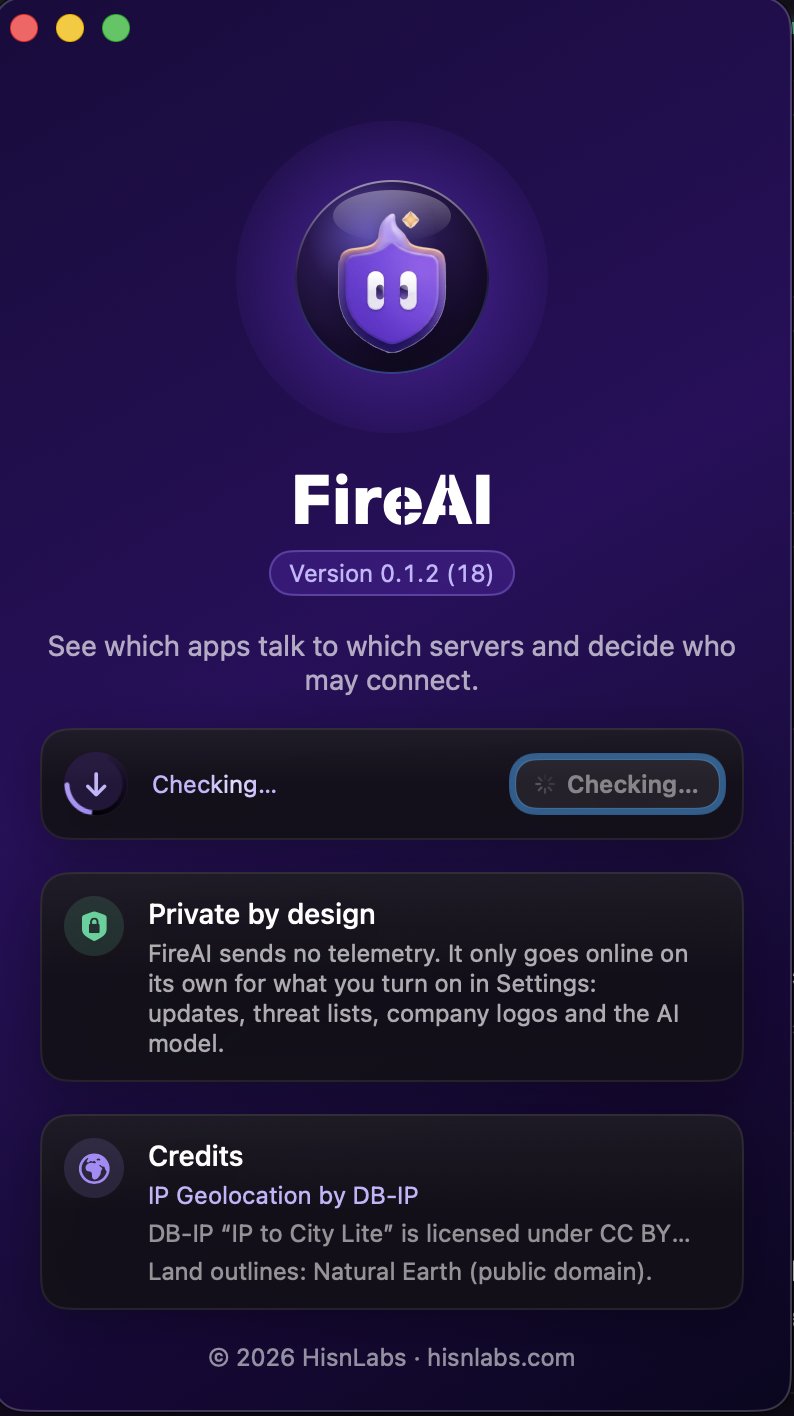
- In the menu bar, choose FireAI › Check for Updates…
- The About window opens and the check starts: a ring spins around the update icon while FireAI asks for the latest version.
- A green check mark means you have the latest version. If a new one is out, its name appears with Download and Open.
Good to know
Read next
Try it on your own Mac
Try every feature free for 17 days, no card needed.
30-day money-back guarantee.