Tutorial · Available since FireAI 0.1.0
Pick the right security mode for where you are, and use the kill switch
Match FireAI’s strictness to where you are, and know where the emergency stop is.
Where in FireAI: Protection
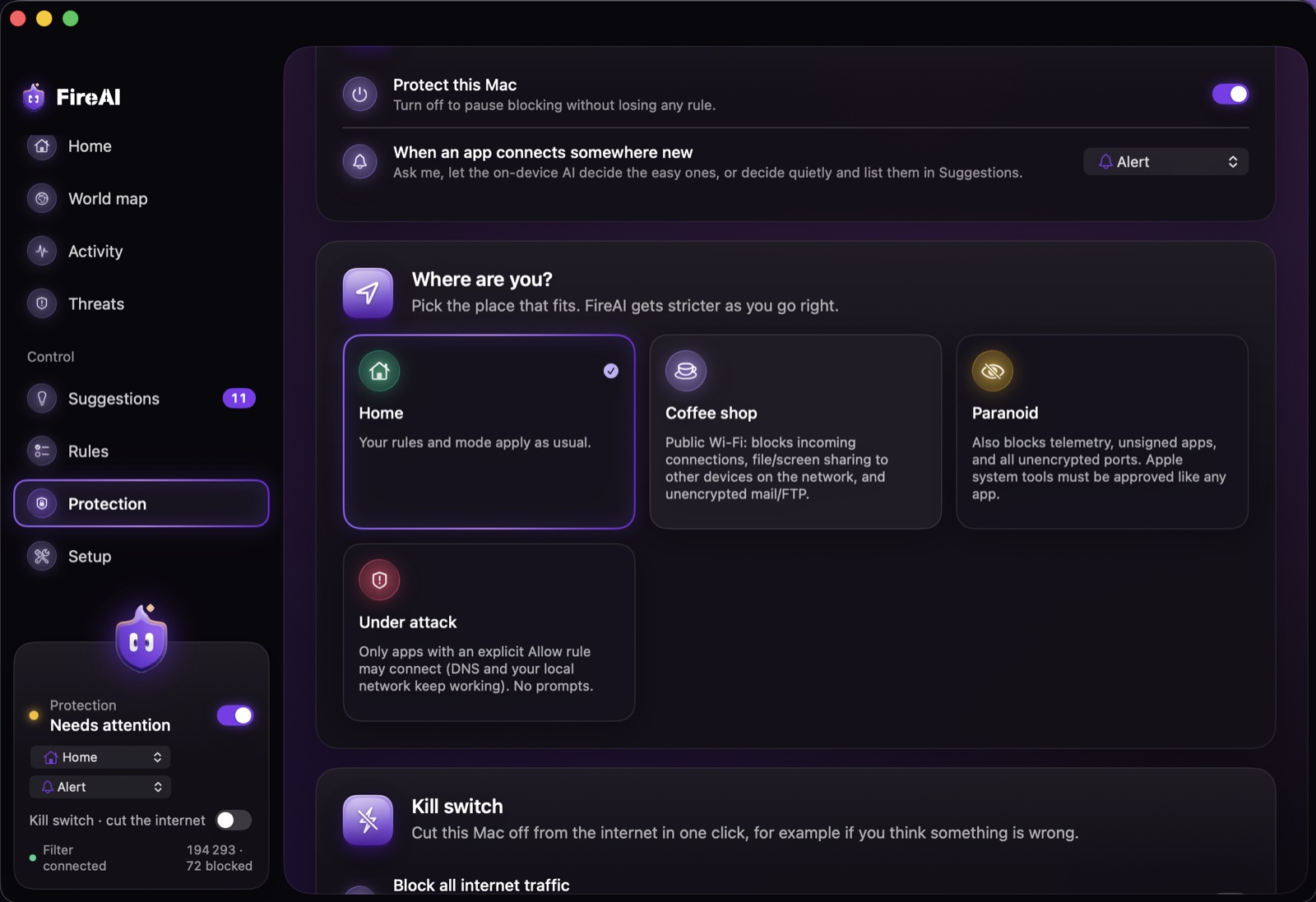
Choose a mode
- Open Protection.
- Under “Where are you?”, pick the tile that fits: Home for your own network, Coffee shop for public Wi-Fi, Paranoid when you want the tightest defaults, or Under attack if you think you’re being targeted right now.
- FireAI applies it immediately; your own rules and any explicit Allow for an app still win.
Use the kill switch
- On the same page, find the Kill switch section.
- Turn on Block all internet traffic. New connections outside your home or office network are refused; the section shows “The internet is blocked” while it’s active.
- Turn it off the same way once you’re done — printers, shared drives and this Mac keep working the whole time.
Read next
Try it on your own Mac
Try every feature free for 17 days, no card needed.
30-day money-back guarantee.