 HisnLabs
Feature · Available since FireAI 0.1.0
The World map
See where your data actually goes, not just a hostname you’d have to look up yourself.
Where in FireAI: World map
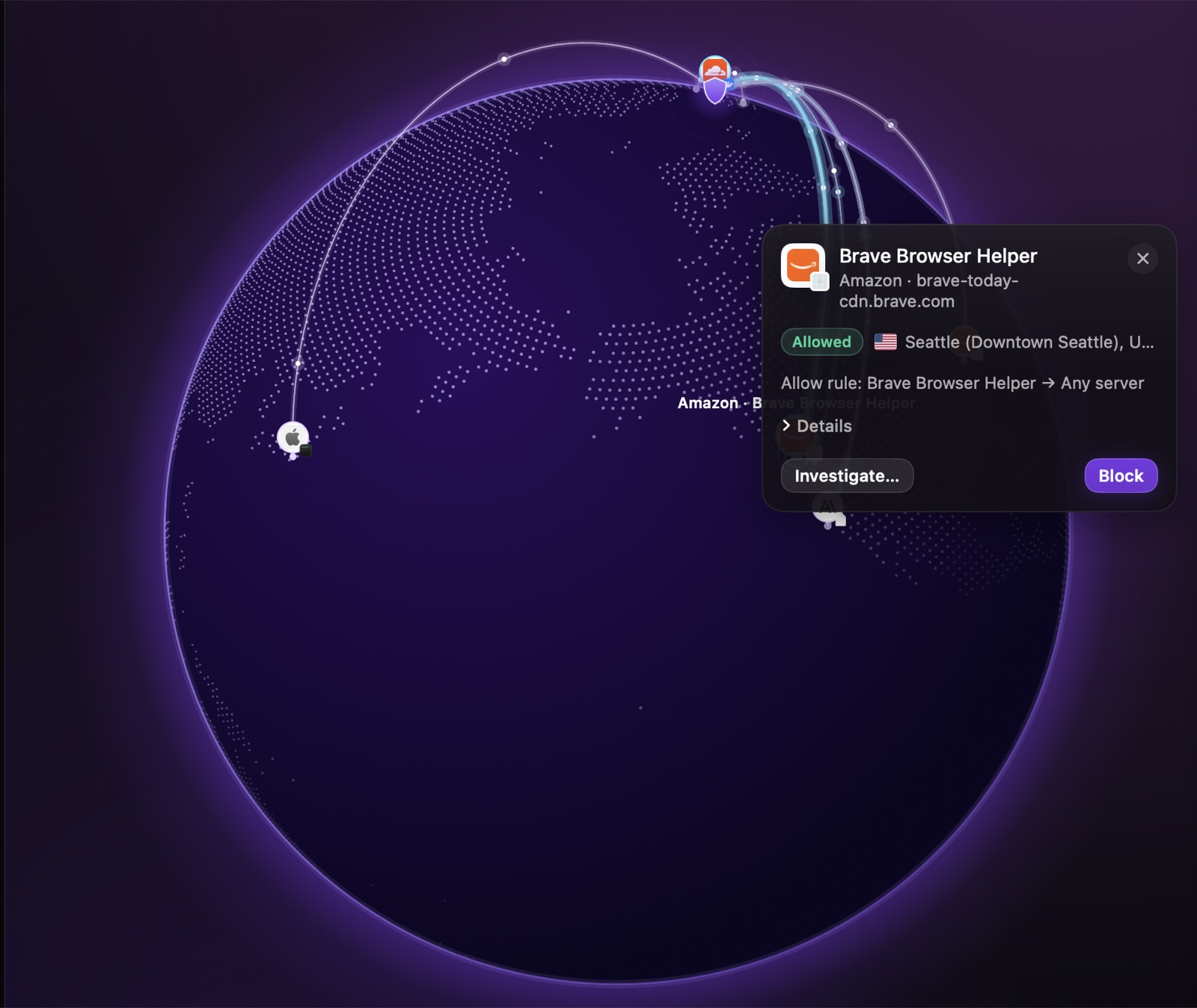
“Every connection your apps make, live. Blocked ones in red.” Each line is a real connection from this Mac to a real destination, drawn the moment it happens.
Reading the map
- Click a line or a destination for a card with the app, the company and place when known, whether it was allowed or blocked, and a short reason.
- The side panel lists every connection, filterable to one app, and lets you hide or show “Kinds of traffic”: Sign-in, App data, Calls, Media & content, Tracking, and Other.
- Export saves one app’s connections to a file, for closer inspection outside FireAI.
Live traffic, day and night (1.0)
- Data rivers: each line is as wide as what flows through it right now. White dots run out from your Mac while it uploads; coloured dots run back while it downloads. A line with nothing flowing stays thin and still.
- The night side of the Earth is shaded. A small moon next to a destination means data is moving there while it is night there; the connection card says roughly what time it is there.
- The ring around the globe shows each country’s share of your live traffic, with the total above it (LIVE · 1.2 MB/s). Point at a slice to see the country; its lines stay bright and the others fade.
Requests by country (1.0)
Under the globe, on the left, each country has a row with its flag, a bar and its number of requests. Click a row and the globe turns to that country and labels it; click it again and the globe spins on. Point at a row for Filter (only that country on the globe and in the list) and Block. A sudden big upload to one country puts it first, in red. See Requests by country and upload spikes.
Real company logos (opt-in)
By default, destinations show a coloured monogram and make no extra requests. Turn on Show Logos and FireAI fetches each company’s own icon from its website and caches it on this Mac — nothing is fetched until you turn this on.
Camera & mic
The Camera & mic button at the top right shows which app turned your camera or microphone on, and where that app’s traffic went while it was active — covered in its own page.
Read next
Try it on your own Mac
Try every feature free for 17 days, no card needed.
30-day money-back guarantee.