 HisnLabs
Feature · Available since FireAI 0.1.0
The menu bar widget
Check your traffic and flip the switches that matter without opening FireAI.
Where in FireAI: macOS menu bar
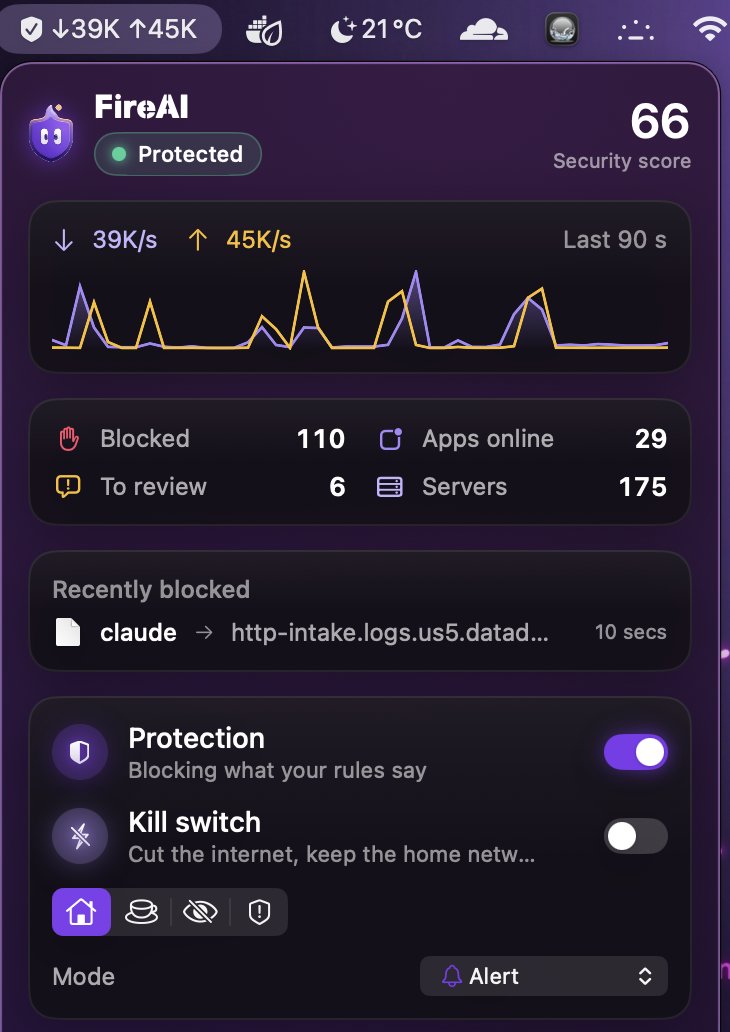
- A live upload/download rate and a sparkline chart of the last 90 seconds.
- Blocked, Apps online, To review and Servers, at a glance.
- Recently blocked: up to four recent blocks, with the app, the destination and when — each with an Allow button (1.0.1) so you can permit one straight from the menu bar, without opening FireAI. It confirms once the rule is added.
- Quick switches: Protection on or off, the kill switch, a “Where are you?” security-mode picker, and the operating mode.
- An Ask FireAI field, so you can type an order without opening the main window.
- The icon itself reacts (1.0): it flashes red for a second when something is blocked (at most every few seconds), and a red arrow with a country code, such as ↑ FR, appears during an upload spike.
Open FireAI opens the main window; Quit closes the app entirely. Settings › Menu bar can add the upload/download speed next to the icon. The kill switch is one of the quick switches available here.
Read next
Try it on your own Mac
Try every feature free for 17 days, no card needed.
30-day money-back guarantee.