教程 · 自 FireAI 0.1.2 起可用
See which app turns on your camera or microphone, and where its traffic goes
Know which app can see or hear you, not just that something can.
在 FireAI 中的位置: World map › Camera & mic
此页面暂时只有英文版。
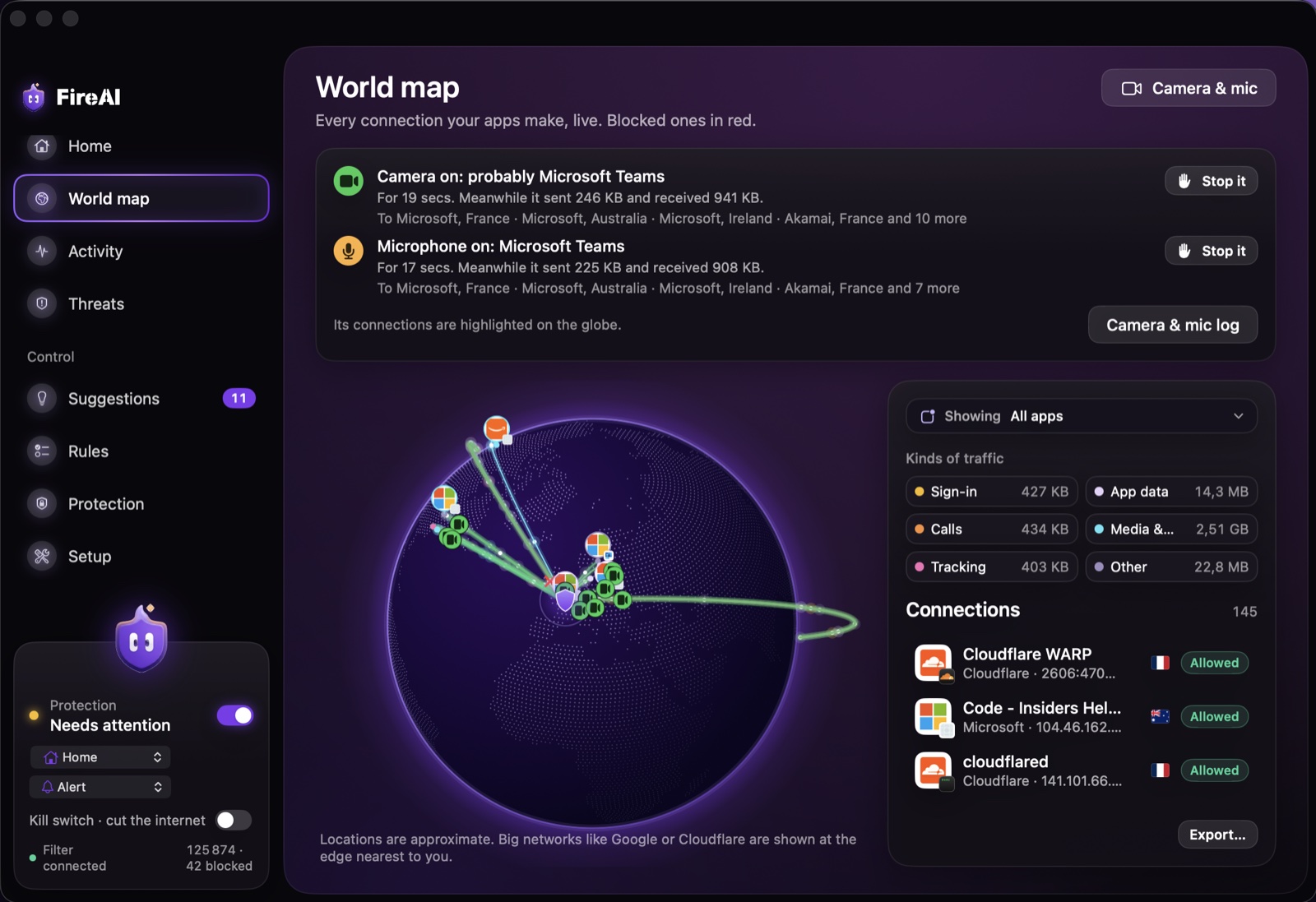
Watch it live
- Open FireAI and go to World map.
- When an app turns on the camera or microphone, a strip appears under the title, for example “Microphone on: Microsoft Teams”, with how long it has been on and how much that app has sent and received since.
- That app’s connections light up on the globe: green while the camera is on, orange for the microphone, with a small camera or microphone badge on each destination. Click a line to see the company and country.
Look back at earlier sessions
- Click Camera & mic at the top right of World map.
- Each session shows the app, when it started, how long it lasted, what it sent and received meanwhile, and its top destinations with company and country.
- The log is kept on this Mac only (last 200 sessions). Clear log removes it.
Stop it
Every session has a Stop it menu. Each choice asks you to confirm first:
- Remove camera access (or microphone access): macOS forgets you allowed that app, so it has to ask again next time; answer Don’t Allow. A call already in progress keeps going until the app quits.
- Quit the app: closes it like ⌘Q, which stops the camera and microphone right away.
- Block its internet: adds FireAI rules so nothing the app records can leave your Mac. Remove them any time in Rules.
- Open Privacy & Security: the System Settings list where macOS decides who may use the camera and microphone.
继续阅读
在您的 Mac 上试用
免费试用全部功能 17 天,无需绑定银行卡。
30 天退款保证。