Función · Disponible desde FireAI 0.1.0
The World map
See where your data actually goes, not just a hostname you’d have to look up yourself.
Dónde en FireAI: World map
Por ahora esta página está en inglés.
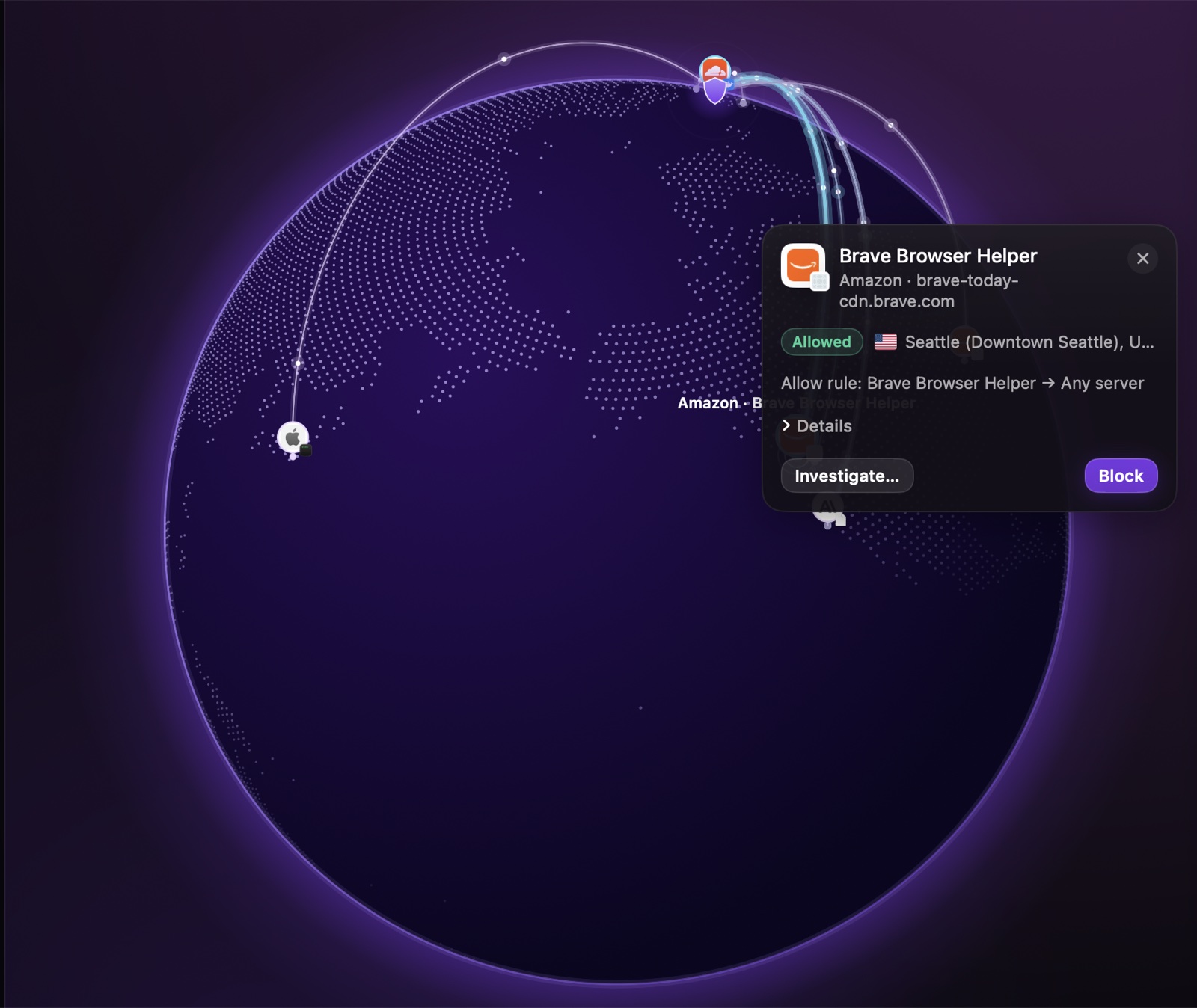
“Every connection your apps make, live. Blocked ones in red.” Each line is a real connection from this Mac to a real destination, drawn the moment it happens.
Reading the map
- Click a line or a destination for a card with the app, the company and place when known, whether it was allowed or blocked, and a short reason.
- The side panel lists every connection, filterable to one app, and lets you hide or show “Kinds of traffic”: Sign-in, App data, Calls, Media & content, Tracking, and Other.
- Export saves one app’s connections to a file, for closer inspection outside FireAI.
Real company logos (opt-in)
By default, destinations show a coloured monogram and make no extra requests. Turn on Show Logos and FireAI fetches each company’s own icon from its website and caches it on this Mac — nothing is fetched until you turn this on.
Camera & mic
The Camera & mic button at the top right shows which app turned your camera or microphone on, and where that app’s traffic went while it was active — covered in its own page.
Sigue leyendo
Pruébalo en tu Mac
Prueba todas las funciones gratis durante 17 días, sin tarjeta.
Descargar para Mac Ver precios
Garantía de devolución de 30 días.