Tutorial · Disponible desde FireAI 0.1.0
Use Autopilot safely: what it decides, and how to correct it
Turn Autopilot on with a clear view of what it’s doing, and fix anything it gets wrong.
Dónde en FireAI: Protection, and Suggestions
Por ahora esta página está en inglés.
Turn it on
- Open Protection and, under “When an app connects somewhere new”, choose Autopilot.
- You can also say it to Ask FireAI: “use autopilot mode”.
Check what it’s doing
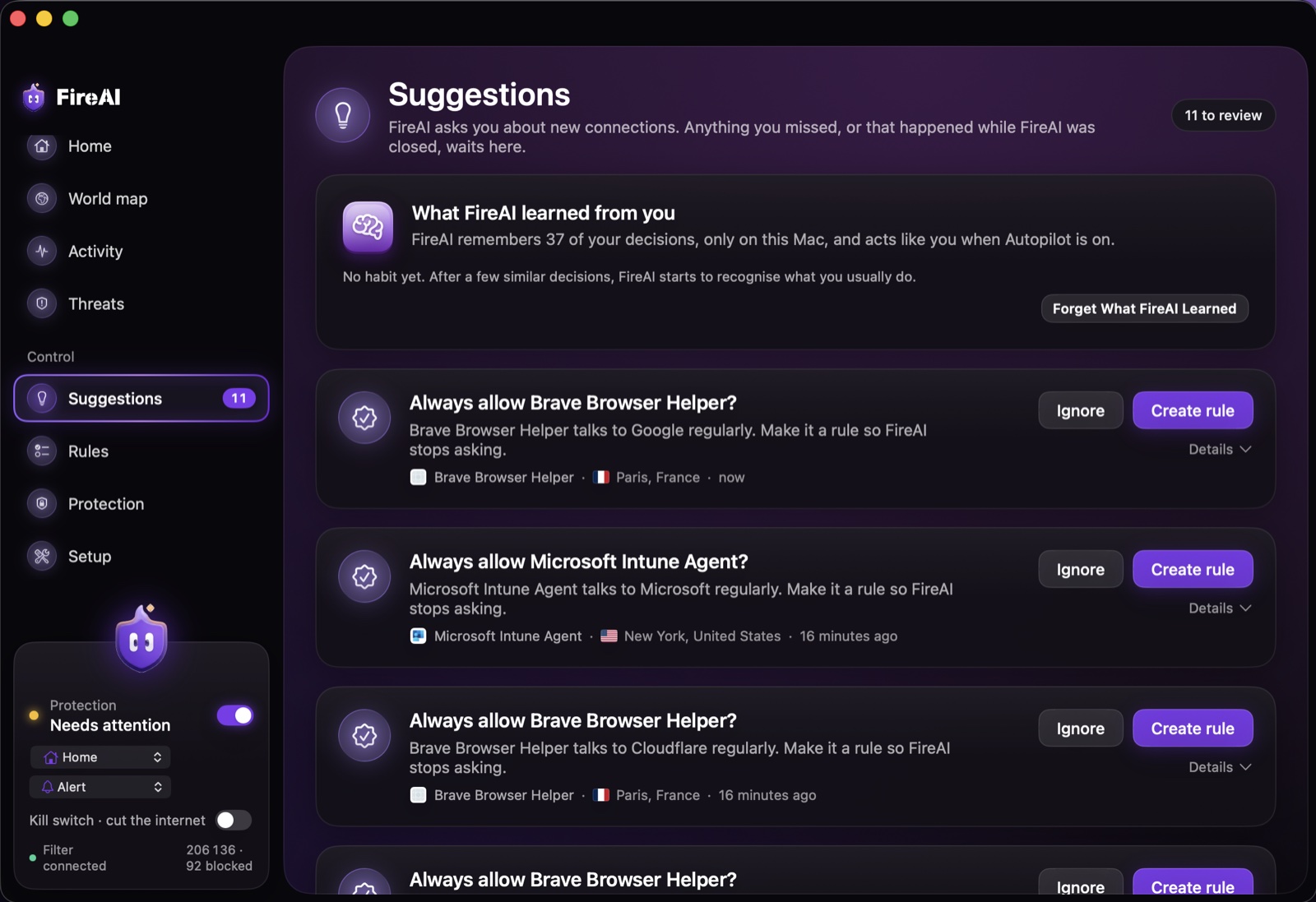
- Open Suggestions regularly, especially in the first days after turning it on.
- Each row shows the app, the destination, whether it was blocked or allowed, how sure FireAI was, and why.
- If a decision looks wrong, click Undo — this removes the rule Autopilot made and teaches it the opposite for next time.
Start over if needed
If Autopilot has learned habits you don’t want, “Forget What FireAI Learned” in Suggestions clears what it has learned from your corrections and habits, asking you to confirm first. See Autopilot for what it can and can’t decide on its own.
Sigue leyendo
Pruébalo en tu Mac
Prueba todas las funciones gratis durante 17 días, sin tarjeta.
Descargar para Mac Ver precios
Garantía de devolución de 30 días.