Recurso · Disponível desde o FireAI 0.1.0
The World map
See where your data actually goes, not just a hostname you’d have to look up yourself.
Onde no FireAI: World map
Por enquanto esta página está em inglês.
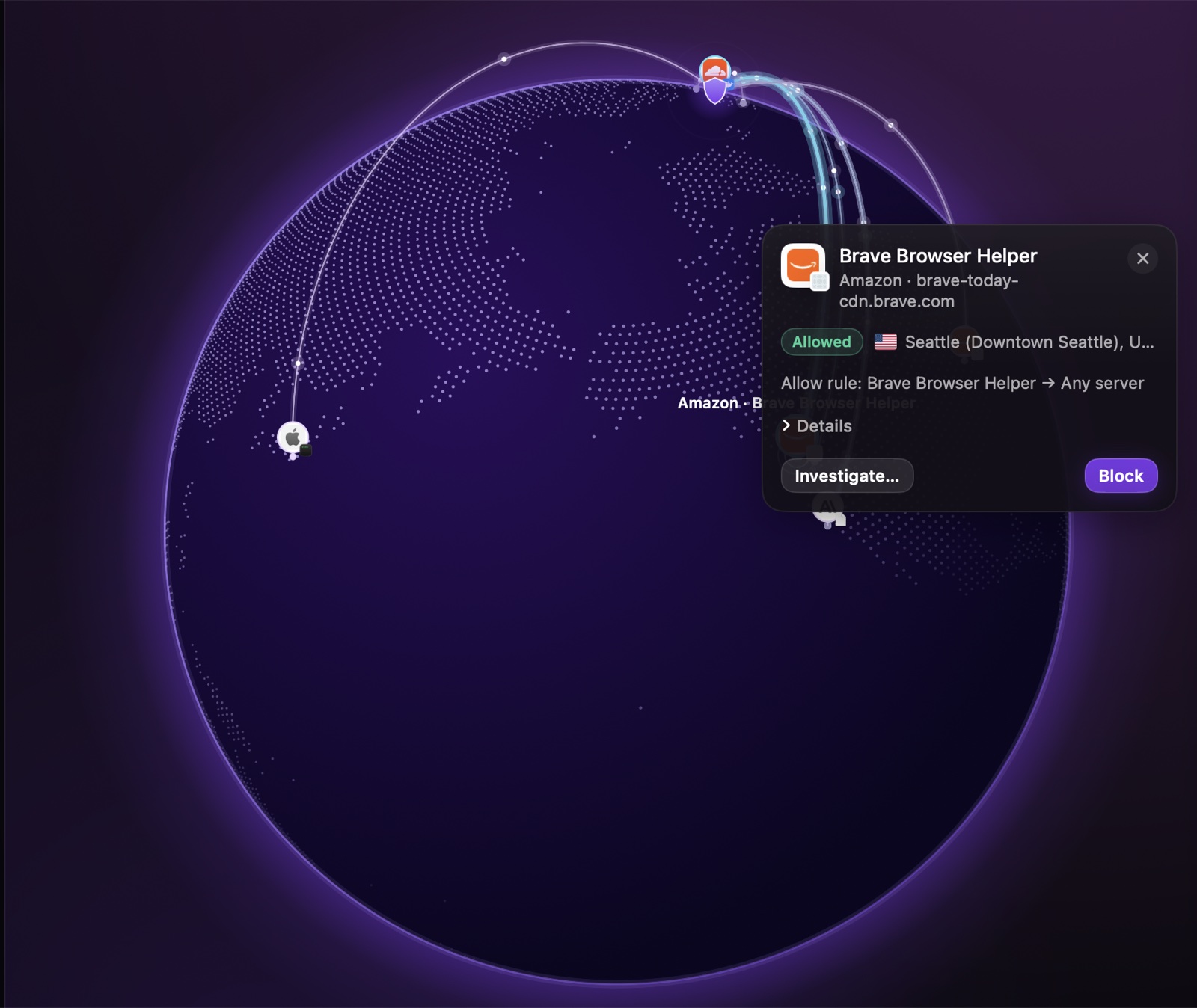
“Every connection your apps make, live. Blocked ones in red.” Each line is a real connection from this Mac to a real destination, drawn the moment it happens.
Reading the map
- Click a line or a destination for a card with the app, the company and place when known, whether it was allowed or blocked, and a short reason.
- The side panel lists every connection, filterable to one app, and lets you hide or show “Kinds of traffic”: Sign-in, App data, Calls, Media & content, Tracking, and Other.
- Export saves one app’s connections to a file, for closer inspection outside FireAI.
Real company logos (opt-in)
By default, destinations show a coloured monogram and make no extra requests. Turn on Show Logos and FireAI fetches each company’s own icon from its website and caches it on this Mac — nothing is fetched until you turn this on.
Camera & mic
The Camera & mic button at the top right shows which app turned your camera or microphone on, and where that app’s traffic went while it was active — covered in its own page.
Leia em seguida
Experimente no seu Mac
Teste todos os recursos grátis por 17 dias, sem cartão.
Garantia de reembolso de 30 dias.