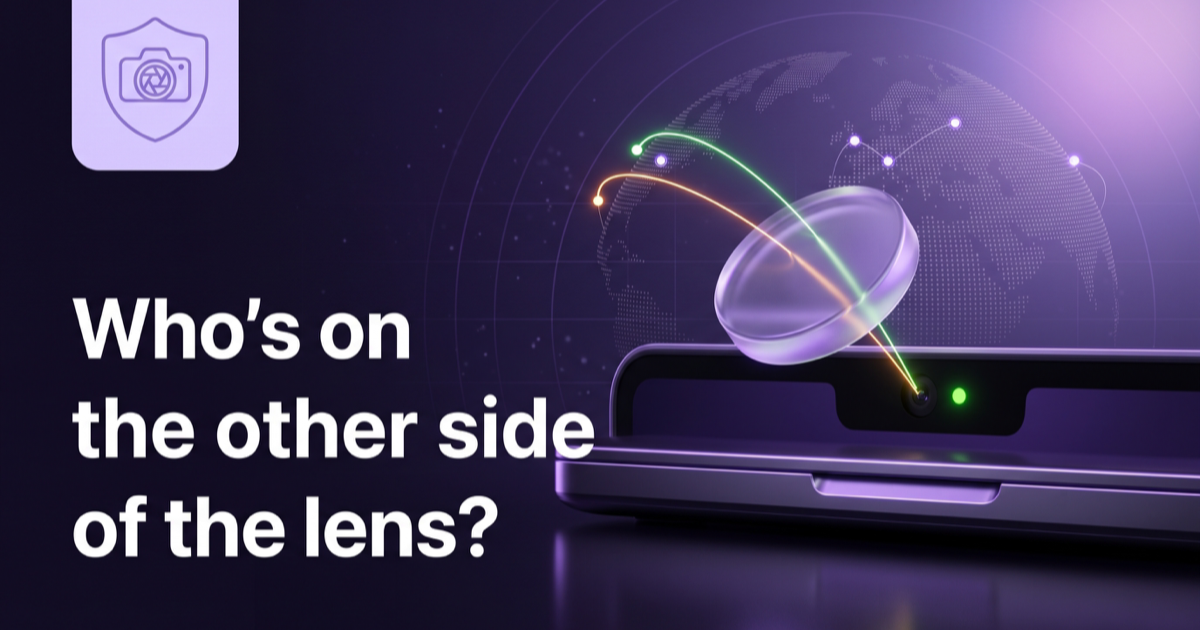
It sits just above the screen, a dot of black glass you stopped noticing years ago. Most of the time it is doing nothing at all. But now and then it wakes up, and a question most people never quite ask comes with it: when that camera is on, who is actually on the other end?
What your Mac already tells you
macOS is better at this than its reputation suggests. Apple’s own guide is plain about the camera: “A green light beside the camera glows to indicate the camera is on.” For the microphone, “The Recording Indicator light in Control Center shows when your computer’s microphone is in use or has been used recently,” and Control Center names the app. On Apple silicon Mac laptops, and Intel ones with the T2 chip, Apple adds a hardware disconnect that “turns off the microphone whenever the lid is closed.” (The camera isn’t cut in hardware, Apple notes, because a closed lid already blocks its view.)
And you decide who may use them at all: System Settings › Privacy & Security › Camera, and the same for Microphone, lists every app that has asked, with a switch for each. That switch is the real lock, and only you can flip it.
What it doesn’t tell you
The green light answers “is the camera on?” Control Center answers “which app?” Neither answers the question that actually matters for privacy: where is it sending what it sees and hears? A video call is supposed to stream to the calling service. An app that turns the camera on and starts uploading to a server you have never heard of, in a country you didn’t expect, looks exactly the same from the green light’s point of view.
Camera watchers have existed on the Mac for years. Objective-See’s free OverSight, for example, “constantly monitors a system, alerting a user whenever the microphone is activated, or the webcam is accessed.” That is the first half of the picture. The second half, what the app does on the network while the camera is on, lives in a different tool: your firewall.
What FireAI 0.1.2 adds
FireAI already sees every connection each app makes, because that is its job. Version 0.1.2 connects that to the camera and microphone:
- The moment an app turns on the camera or microphone, a strip appears on the World map: “Microphone on: Microsoft Teams”, with how long it has been on and how much the app has sent and received since.
- That app’s connections light up on the globe, green for the camera and orange for the microphone (the same colours as macOS’s own indicators), with a small camera or microphone badge on each destination. You see which companies and which countries the app is talking to while it can see or hear you.
- A “Camera & mic” log keeps every session: which app, when, for how long, and the top destinations with their company and country. It is stored on your Mac only, and you can clear it.
- A “Stop it” menu on every session: remove that app’s camera or microphone access (macOS will ask you again next time, and you say Don’t Allow), quit the app to end a live session at once, or block its internet so nothing it records can leave your Mac.
Microphone: Microsoft Teams
25 Sept 2026, 16:02, for 42 min
Sent 38 MB, received 51 MB meanwhile
To Microsoft, Ireland · Microsoft, Netherlands · Akamai, France
Where it stops, stated plainly
A privacy tool that overstates what it knows is worse than none, so here are the limits.
- The microphone’s app comes straight from macOS, so it is exact. The camera’s is not: macOS offers no public way to ask which app holds the camera. FireAI names the app that is on the microphone at the same time, or else the app in front, and says “probably” when it does.
- FireAI cannot switch another app’s camera off in the middle of a call; only macOS and the app can. Removing access makes macOS ask again next time, and quitting the app ends a live session. The internet block is the part FireAI enforces itself.
- If an app hands its traffic to a system service (FaceTime relies on one), that traffic belongs to the service, not the app, and is not linked to the session.
- It uses only public macOS interfaces and needs no camera or microphone permission of its own, because it never looks at the picture or the sound, only at whether the device is on.
The short version
Keep the green light as your first warning and System Settings as your lock. What was missing was the last step: seeing where the picture and the sound go. That is the part FireAI now draws on the globe.
How FireAI and HisnLabs fit in
FireAI 0.1.2 shows which app turned your camera or microphone on, and draws where that app’s traffic goes on the world map while they’re on. It all stays on your Mac.
FireAI is HisnLabs’ own product: an on-device AI firewall for Mac. It shows every connection your apps make, in plain language, and lets you decide what leaves your Mac — its AI runs locally, so your traffic is never sent to us or anyone else. HisnLabs’ security research team is the group that keeps that decision-making accurate: cataloguing which domains are ordinary telemetry versus a real product, tracking the country and network behind a connection, and training the on-device model (its Autopilot feature) on real traffic patterns, all without any of it leaving your Mac.
You can read the technical decisions behind it, or try FireAI for 17 days, at FireAI, by HisnLabs.