Funktion · Verfügbar seit FireAI 0.1.0
Your protection status at a glance
One look tells you whether FireAI is really protecting you right now, and one click changes it.
Wo in FireAI: Sidebar, bottom card
Diese Seite gibt es vorerst auf Englisch.
What it does for you
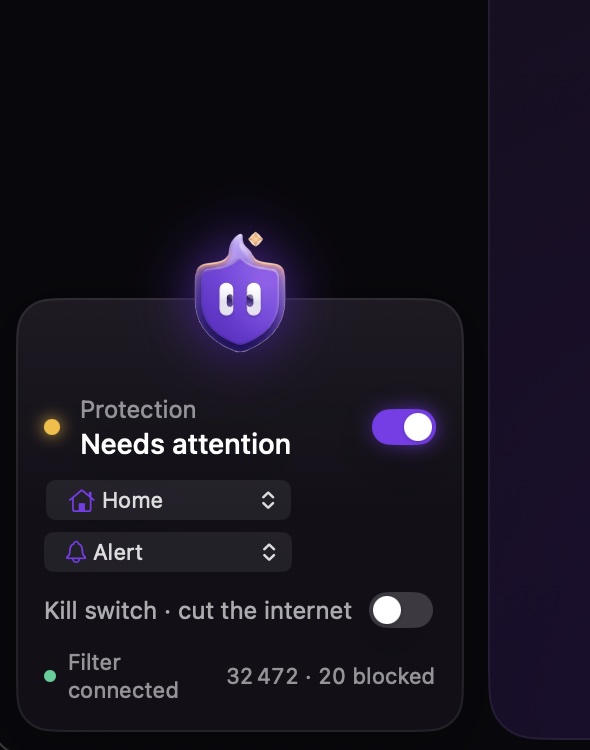
The card sits under the mascot at the bottom of the sidebar, so it is always in view. It answers the two questions that matter: is FireAI running, and is it set up well?
How to read it
| You see | It means |
|---|---|
| Protection: Strong | The filter is running, protection is on, and your setup scores 75 or more out of 100. |
| Protection: Needs attention | Everything runs, but the setup could be stronger. Home lists the tips that raise the score. |
| Protection: Off | You paused protection with the switch: connections are shown, nothing is blocked or asked. |
| Protection: Not running | The network filter isn’t running yet. Open Setup to finish it. |
| Filter connected / Filter offline | Whether the app is talking to FireAI’s network filter right now. |
| 32 472 · 20 blocked | Connections FireAI has seen, and how many it blocked, since it started. |
Change things from the card
- The switch turns protection on or off. Off keeps every rule; it only stops blocking and asking.
- The first menu picks where you are: Home, Coffee shop, Paranoid or Under attack.
- The second menu picks how FireAI answers new connections: Alert asks you, Autopilot lets the on-device model decide confident cases, the Silent modes decide quietly.
- Kill switch cuts the internet in one click while your local network keeps working.
Good to know
Weiterlesen
Probieren Sie es auf Ihrem Mac aus
Teste alle Funktionen 17 Tage kostenlos, ohne Karte.
Download für Mac Preise ansehen
30 Tage Geld-zurück-Garantie.