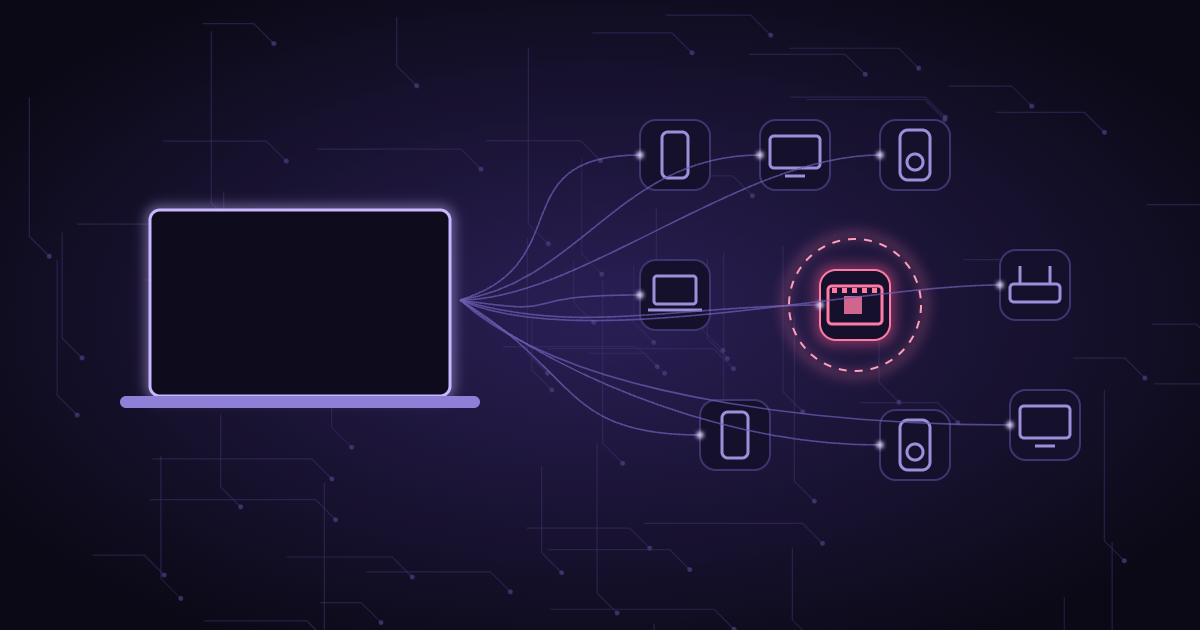
In the first season of Mr. Robot, getting inside a heavily guarded data center comes down to one small object: a Raspberry Pi, a credit-card-sized computer, smuggled in and plugged into the building’s network. From there it can be reached from outside and used against the systems around it. It’s a memorable scene because it’s so plausible. A Raspberry Pi is cheap, runs Linux, draws little power and, once it’s on a network, is just one more device among many.
You don’t need to run a data center for this to matter. A home or small-office network is usually shared by dozens of devices — phones, laptops, TVs, speakers, plugs, cameras, a printer — and almost nobody knows the full list. A new device joining it raises no alarm anywhere. That’s the gap a planted device, a neighbor on your Wi-Fi, or a quietly misbehaving gadget depends on.
Why a device on your network is a problem even if it never “hacks” you
- It can look for services other devices offer on the local network: shared folders, screen sharing, remote login, printers.
- It can watch which devices are around and when — a surprisingly revealing pattern of who is home.
- It can wait. Many local-network attacks don’t need speed, only presence.
- It can be a legitimate gadget with poor security that someone else controls — which, for your network, amounts to the same thing.
How your Mac already knows who’s around
Devices on the same local network find each other through a mechanism called ARP. Before your Mac can send anything to another device on the Wi-Fi — the router included — it learns that device’s hardware address, called a MAC address, and keeps a short list of the ones it has seen recently. That list is an honest record of which devices your Mac has actually been in contact with on the local network.
The first half of every MAC address is a manufacturer code, assigned by the IEEE and published in a public registry. Raspberry Pi boards, for instance, report registrations such as “Raspberry Pi Trading Ltd”. Apple, Samsung, Sonos, TP-Link and thousands of others have their own. So from that short list alone, your Mac can say not just “there’s a device at this address” but “there’s a device made by this company”.
You can see the raw version yourself in Terminal:
arp -an
? (192.168.1.1) at a4:2b:b0:12:34:56 on en0 ifscope [ethernet]
? (192.168.1.23) at dc:a6:32:ab:cd:ef on en0 ifscope [ethernet]Useful, but not exactly readable. Nobody memorizes manufacturer codes.
The readable version: Who’s online in FireAI
Who’s online turns that list into something you can actually use. It reads your Mac’s ARP table once a minute — no network scanning, no probing of other devices, no packets sent to them — and looks up each device’s manufacturer in the public IEEE registry that ships inside FireAI, so no lookup ever leaves your Mac.
- Every device is listed with its manufacturer, its current address, the name it gives itself when you turn on name lookup (off by default: it’s the one part that asks your DNS server anything), and an icon for what it probably is — a Mac, a phone, a TV, a speaker, your router. If the guess is wrong, pick the right one.
- Give devices your own names: “Kitchen speaker”, “David’s MacBook”, “Living room TV”. Named devices are the ones you’ve recognized; the unnamed ones are the ones to look at.
- Watch a device, and FireAI notifies you when it joins or leaves the network. It works for security — the unknown box that keeps coming back — and for everyday questions like whether a family member’s laptop is home.
- Unwatched devices are tracked silently. FireAI never floods you with a notification every time a phone wakes up.
A box that shows up as “Raspberry Pi Trading Ltd”, or as a manufacturer you’ve never bought anything from, is the modern version of a cable nobody can explain. It might be harmless — plenty of people run a Raspberry Pi at home on purpose. The point is that now you’ll know it’s there, and you can ask.
The honest limits
We’d rather you trust the list for what it is than for more than it is:
- Private addresses. Most modern phones, tablets and laptops use a randomized, private Wi-Fi address on each network. Those devices show as “Private address” in FireAI — we don’t guess a manufacturer for them, because any guess would be made up. Naming them once still works.
- What your Mac has seen. The ARP list only contains devices your Mac has recently exchanged traffic with on the local network. Busy devices appear quickly; a device that’s silent, or on a separate guest network, may not.
- The router is the full picture. Your router’s admin page lists every device it has handed an address to. Who’s online is the quick view from your Mac; the router is the source of truth, and the place to block a device from the network entirely.
Found something you don’t recognize? What to do
- Name everything you do recognize first. The unknowns get shorter fast.
- Watch the unknown device, so you learn when it’s present — that pattern often identifies it (“only when the cleaner is here”, “every night at 2 a.m.”).
- Check your router’s client list for the same hardware address and see what name the router shows.
- If you still can’t place it, change your Wi-Fi password — every device has to rejoin, and only the ones you let back in will.
- On networks you don’t control, switch FireAI to Coffee shop mode: incoming connections are refused and your Mac’s file and screen sharing to other local devices is blocked, so a stranger’s box has nothing to talk to.
Mr. Robot’s Raspberry Pi worked because nobody was looking at the network. On your own Wi-Fi, looking is now a one-click habit. For the rest of the show’s techniques and what stops them, read Mr. Robot’s hacks, explained.
How FireAI and HisnLabs fit in
A rogue box on your network only works if nobody notices it. Who’s online in FireAI makes every device your Mac can see visible, named by its manufacturer — and tells you when the ones you care about come and go.
FireAI is HisnLabs’ own product: an on-device AI firewall for Mac. It shows every connection your apps make, in plain language, and lets you decide what leaves your Mac — its AI runs locally, so your traffic is never sent to us or anyone else. HisnLabs’ security research team is the group that keeps that decision-making accurate: cataloguing which domains are ordinary telemetry versus a real product, tracking the country and network behind a connection, and training the on-device model (its Autopilot feature) on real traffic patterns, all without any of it leaving your Mac.
You can read the technical decisions behind it, or try FireAI for 17 days, at FireAI, by HisnLabs.